- Media library
- Question limits
- Creating a survey from MS Word doc
- How to edit live surveys
- Survey blocks
- Survey block randomizer
- Question randomization
- Scale Library
- What is monadic testing?
- What is sequential monadic testing?
- Extraction Support for Image Chooser Question Types
- What is comparison testing?
- Custom validation messages
- Survey Builder with QuestionPro AI
- Testing Send
- Survey Preview Options
- Add Questions From a Document
- Survey Authoring 2025
- Getting Started Test
- Standard question types
- Multiple choice question type
- Text question- comment box
- Matrix multi-point scales question type
- Rank order question
- Smiley-rating question
- Image question type
- Date and time question type
- reCAPTCHA question type
- Net Promoter Score question type
- Van Westendorp's price sensitivity question
- Choice modelling questions
- Side-By-Side matrix question
- Homunculus question type
- Predictive answer options
- Presentation text questions
- Multiple choice: select one
- Multiple choice: select many
- Page timer
- Contact information question
- Matrix multi-select question
- Matrix spreadsheet question
- Closed card sorting question
- Flex Matrix
- Text Slider Question Type
- Graphical Rating Scales
- Rank Order - Drag and Drop
- Bipolar Matrix - Slider
- Bipolar Matrix Likert Scale
- Gabor Granger
- Verified Digital Signature
- Star Rating Question Type
- Push to social
- Attach Upload File Question
- Constant Sum Question
- Video Insights
- Platform connect
- Communities Recruitment
- TubePulse
- Open Card Sorting
- Map Question Type
- VideoAI
- Moderated (Chat)
- Answer type
- Reorder questions
- Question tips
- Text box next to question
- Text question settings
- Adding other option
- Matrix question settings
- Image rating question settings
- Scale options for numeric slider question
- Constant sum question settings
- Setting default answer option
- Exclusive option for multiple choice questions
- Validate question
- Bulk validation settings
- Remove validation message
- Question separators
- Question Code
- Page breaks in survey
- Survey introduction with acceptance checkbox
- RegEx Validation
- Question Library
- Embed Media
- Slider Start Position
- Answer Display - Alternate Flip
- Matrix - Auto Focus Mode
- Text validations
- Numeric Input Settings- Spreadsheet
- Answer Groups
- Hidden Questions
- Decimal Separator Currency Format
- Allow Multiple Files - Attache/Upload Question Type
- Text box - Keyboard input type
- Deep Dive
- Answer Display Order
- Alternate colors
- Conjoint Best Practices
- Multi-media file limits
- Conjoint Prohibited Pairs
- Carousel Layout for Matrix Questions
- Add logo to survey
- Custom Themes
- Display Settings
- Auto-advance
- Progress bar
- Automatic question numbering option
- Enabling social network toolbar
- Browser Title
- Print or export to PDF, DOC
- Survey Navigation Buttons
- Accessible Theme
- Back and Exit Navigation Buttons
- Focus Mode
- Survey Layout
- Survey Layout - Visual
- Telly Integration
- Telly Integration
- Workspace URL
- Classic Layout
- Branching - Skip Logic
- Compound Branching
- Compound or delayed branching
- Response Based Quota Control
- Dynamic text or comment boxes
- Extraction logic
- Show or hide question logic
- Dynamic show or hide
- Scoring logic
- Net promoter scoring model
- Piping text
- Survey chaining
- Looping logic
- Branching to terminate survey
- Logic operators
- Selected N of M logic
- JavaScript Logic Syntax Reference
- Block Flow
- Block Looping
- Scoring Engine: Syntax Reference
- Always Extract and Never Extract Logic
- Matrix Extraction
- Locked Extraction
- Dynamic Custom Variable Update
- Advanced Randomization
- Custom Scripting Examples
- Survey Logic Builder - AI
- Custom Scripting - Custom Logic Engine Question
- Demo Skip Logic
- Survey settings
- Save & continue
- Anti Ballot Box Stuffing (ABBS) - disable multiple responses
- Deactivate survey
- Admin confirmation email
- Action alerts
- Survey timeout
- Finish options
- Spotlight report
- Print survey response
- Search and replace
- Survey Timer
- Allowing multiple respondents from the same device
- Text Input Size Settings
- Admin Confirmation Emails
- Survey Close Date
- Respondent Location Data
- Review Mode
- Review, Edit and Print Responses
- Geo coding
- Dynamic Progress Bar
- Response Quota
- Age Verification
- Tools - Survey Options
- Quota Management
- Voice Input Setting
- Live survey URL
- Customize survey URL
- Create email invitation
- Personalizing emails
- Email invitation settings
- Email list filter
- Survey reminders
- Export batch
- Email status
- Spam index
- Send surveys via SMS
- Phone & paper
- Adding responses manually
- SMS Pricing
- Embedding Question In Email
- Deleting Email Lists
- Multilingual Survey Distribution
- SMTP
- Reply-To Email Address
- Domain Authentication
- Email Delivery Troubleshooting
- QR Code
- Email Delivery and Deliverability
- Connecting Your WhatsApp Business Account to QuestionPro
- Survey Dashboard - Report
- Overall participant statistics
- Dropout analysis
- Pivot table
- Turf analysis
- Trend analysis
- Correlation analysis
- Survey comparison
- Gap analysis
- Mean calculation
- Weighted mean
- Cluster Analysis
- Dashboard filter
- Download Options - Dashboard
- HotSpot analysis
- Heatmap analysis
- Weighted Rank Order
- Cross-Tabulation Grouping Answer Options
- A/B Testing in QuestionPro Surveys
- Data Quality
- Data Quality Terminates
- Matrix Heatmap Chart
- Column proportions test
- Response Identifier
- TURF Reach Analysis
- Bulk Edit System Variables
- Weighting and balancing
- Conjoint analysis designs
- Conjoint part worths calculation
- Conjoint calculations and methodology
- Conjoint attribute importance
- Conjoint profiles
- Market segmentation simulator
- Conjoint brand premium and price elasticity
- What is MaxDiff scaling
- MaxDiff settings
- Anchored MaxDiff Analysis [BETA Release]
- MaxDiff FAQ
- MaxDiff- Interpreting Results
- Automatic email report
- Data quality - Patterned responses
- Data quality - gibberish words
- Import external data
- Download center
- Consolidate report
- Delete survey data
- Data quality - All checkboxes selected
- Exporting data to Word or Powerpoint
- Scheduled reports
- Datapad
- Notification Group
- Unselected Checkbox Representation
- Merge Data 2.0
- Plagiarism Detection
- IP based location data
- SPSS Export
- SPSS variable name
- Update user details
- Update time zone
- Teams
- Add Users
- Usage dashboard
- Single user license
- License restrictions
- Troubleshooting login issues
- Software support package
- Welcome Email
- User Roles & Permissions
- Bulk Add Users
- Two-Factor Authentication
- Network Access
- Changing ownership of the survey
- Unable to access Chat support
- Navigating QuestionPro Products
- Agency Partnership Referral Program
- Response Limits
- Login with passkey

[BETA] Decipher Import Tool
Decipher Import Tool is built by QuestionPro to facilitate the ease of migration from Decipher to QuestionPro. This tool allows you to migrate all your surveys along with the collected responses from Decipher to QuestionPro using the Decipher API.
Click to download video
To migrate your surveys from Decipher to QuestionPro, please follow the steps below:
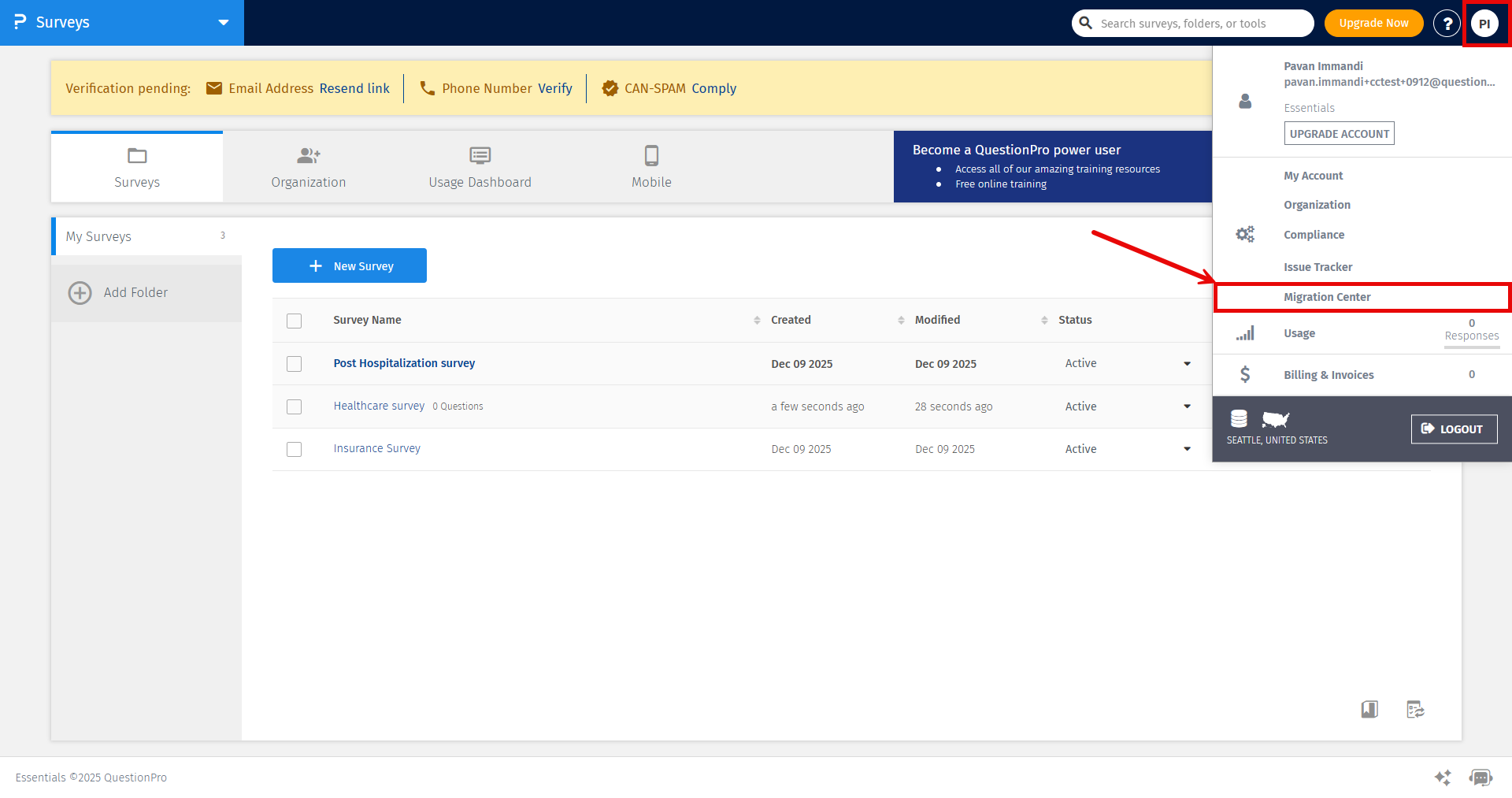
- Log in to your QuestionPro account. Navigate to the My Account dropdown and click on the Migration Center option.
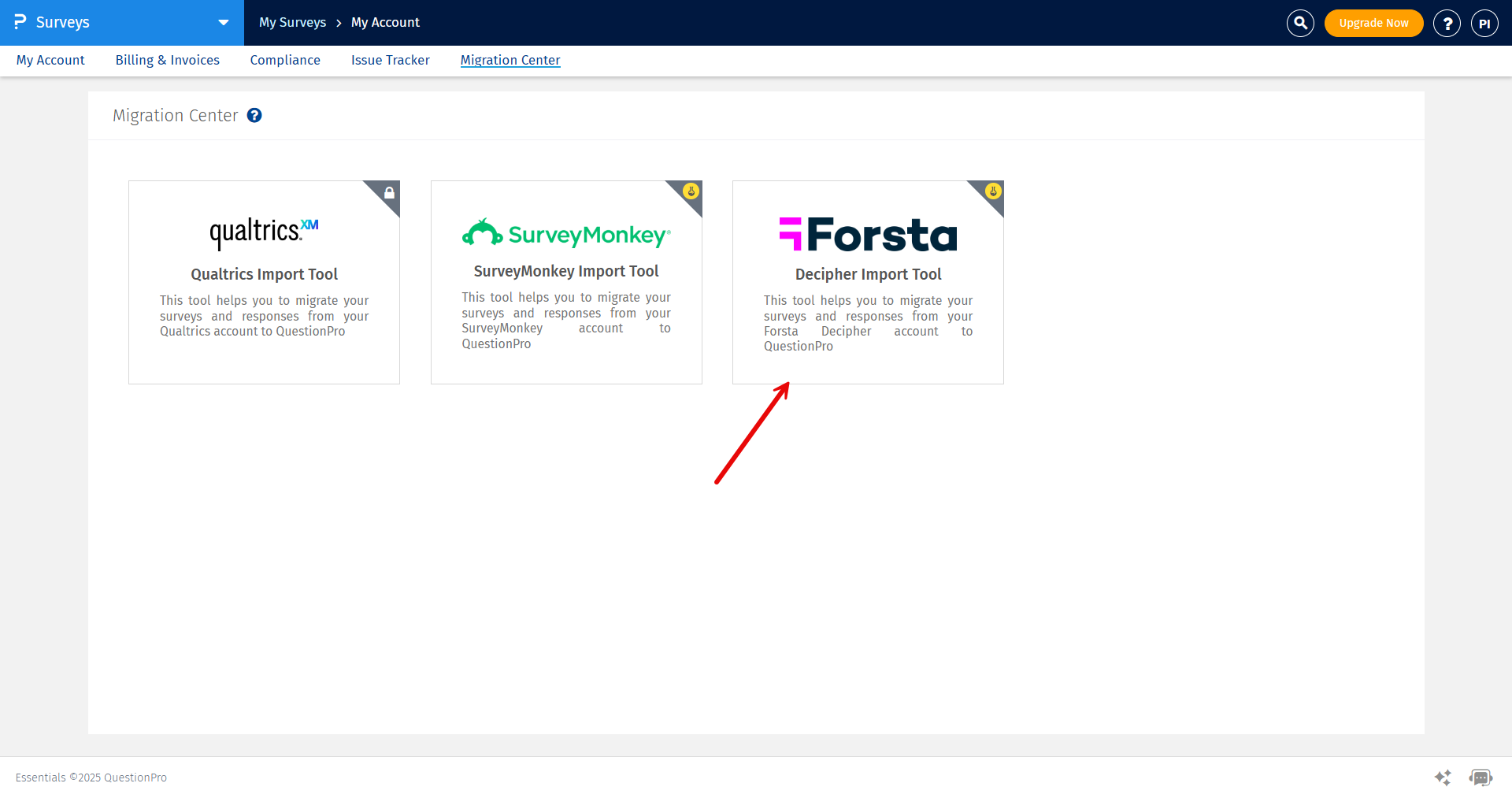
- Click on the Decipher Import Tool tile.
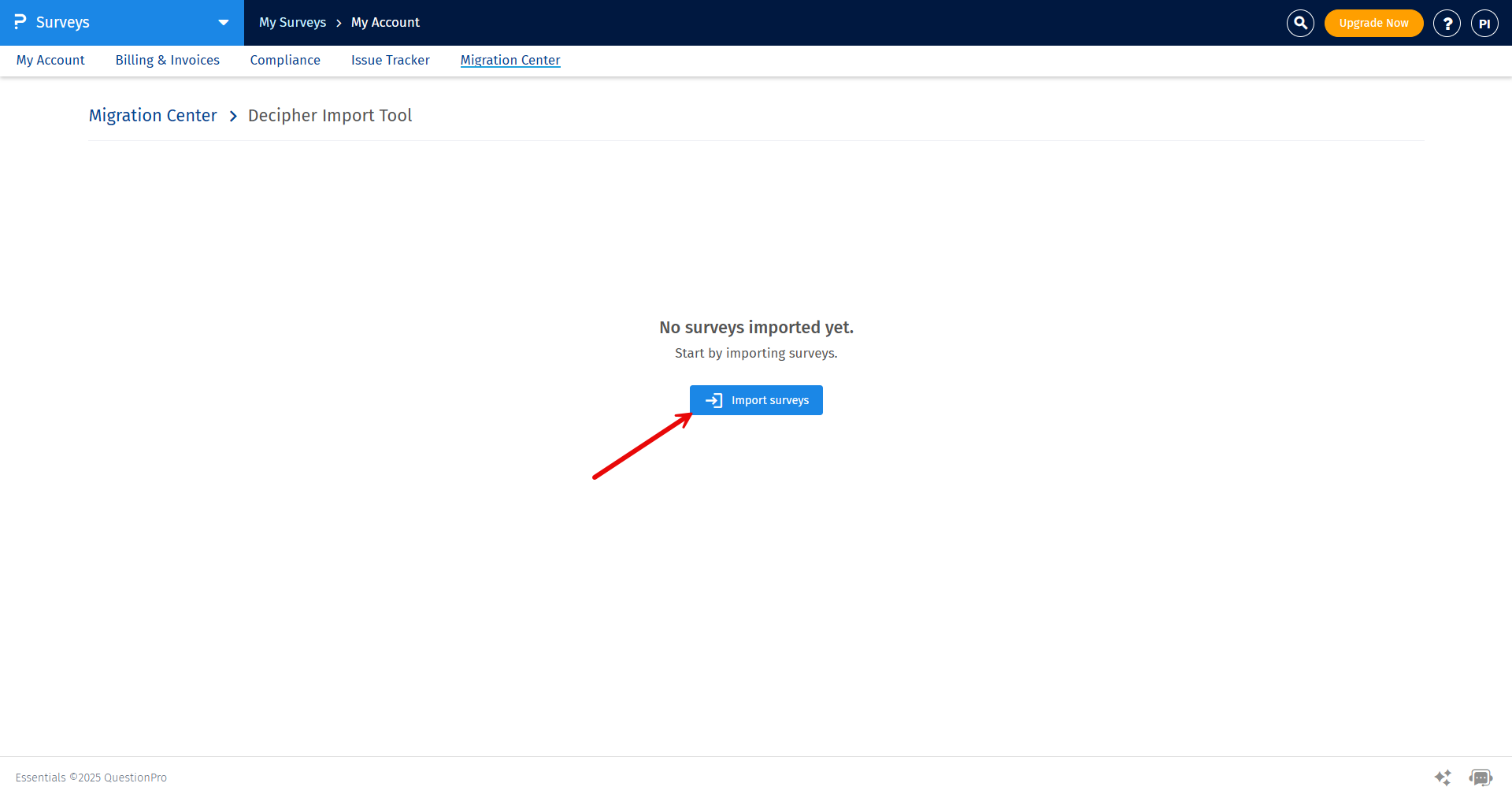
- Click on the Import surveys button.
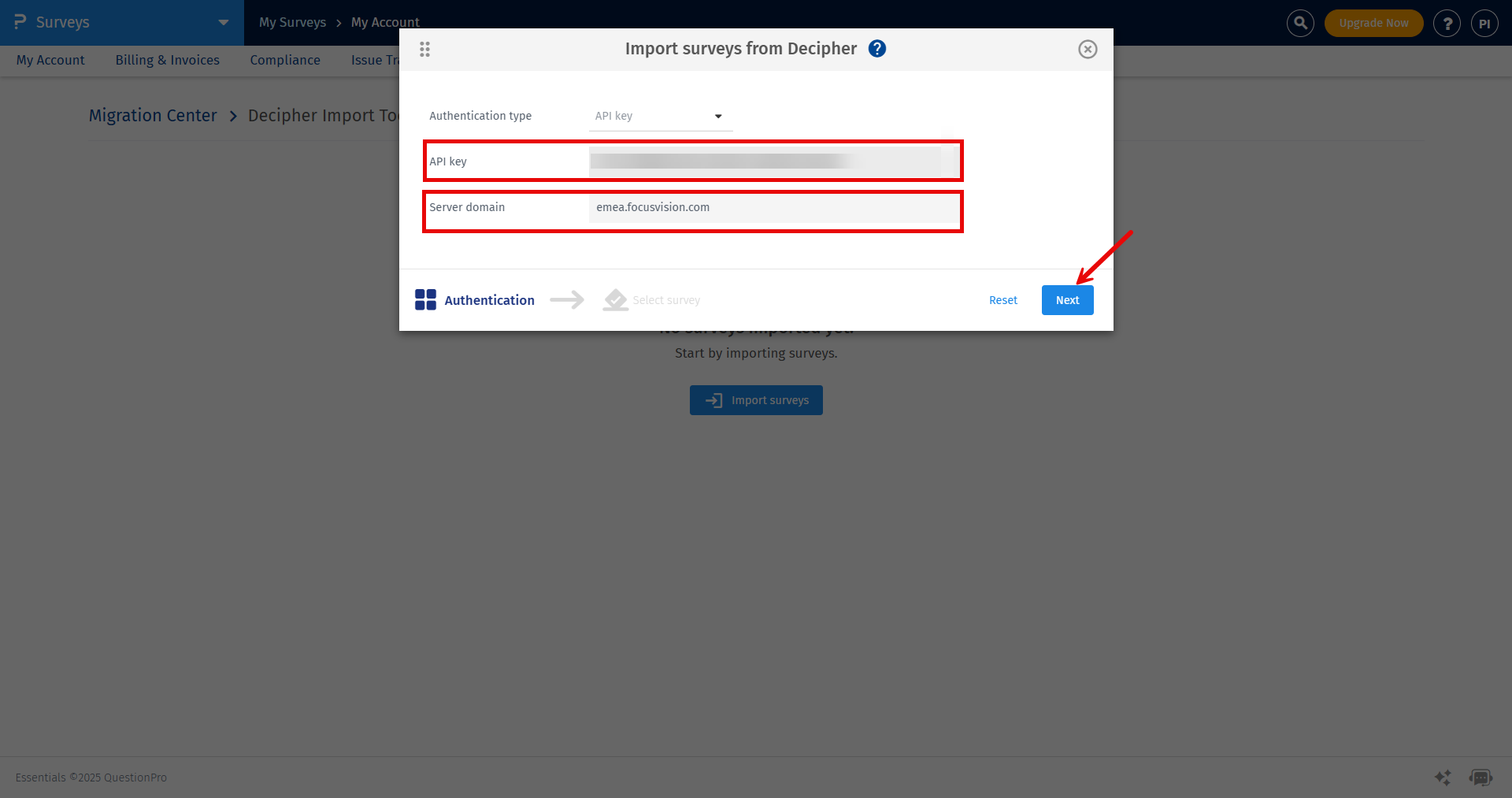
- In the pop-up, enter your Decipher API key and Server domain (e.g., emea.focusvision.com). Then click on the Next button.
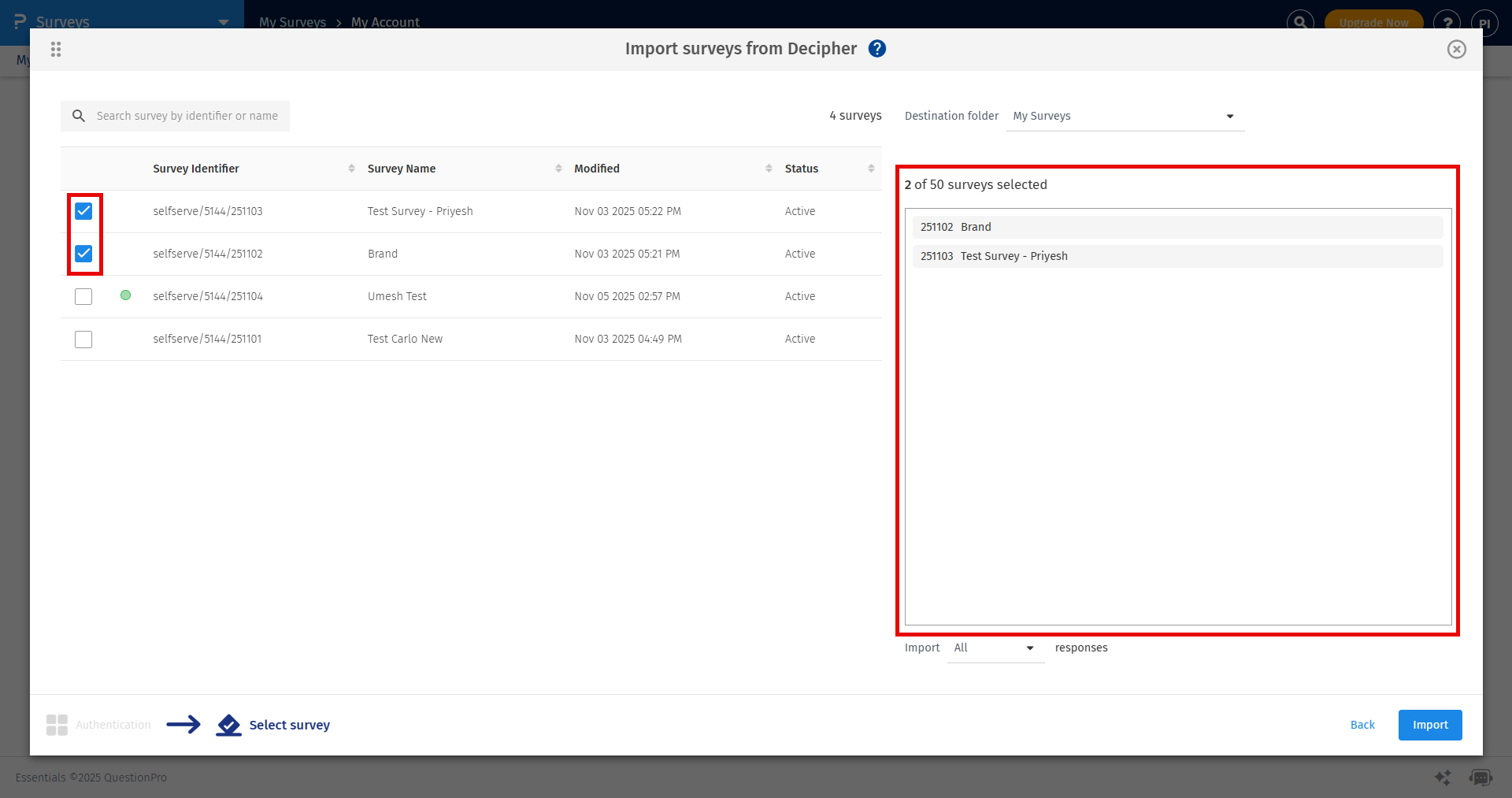
- Our system will fetch all the surveys from Decipher and display the list in the pop-up. Select the surveys you want to import by using the checkboxes. The selected surveys will be displayed on the right side of the pop-up.
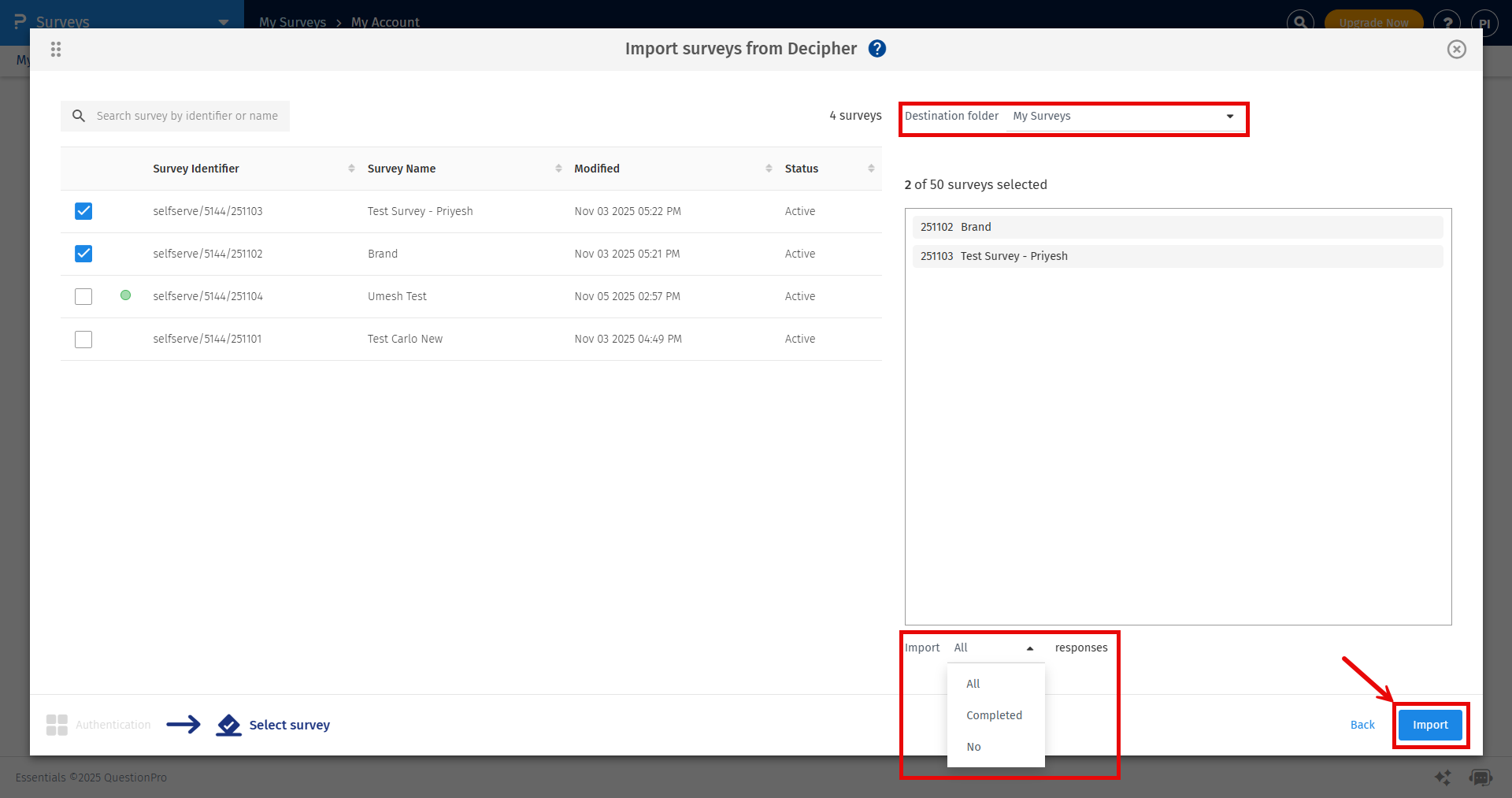
- After selecting surveys, you'll find a dropdown menu at the bottom right of the pop-up which will allow you to import all responses, completed responses, or no responses for all the selected surveys. Additionally, you can select the destination folder for the surveys using the dropdown in the top right corner of the pop-up. Once you've made your selections, click the Import button to proceed.
- The import process will start and you'll be notified via email after the process is complete.
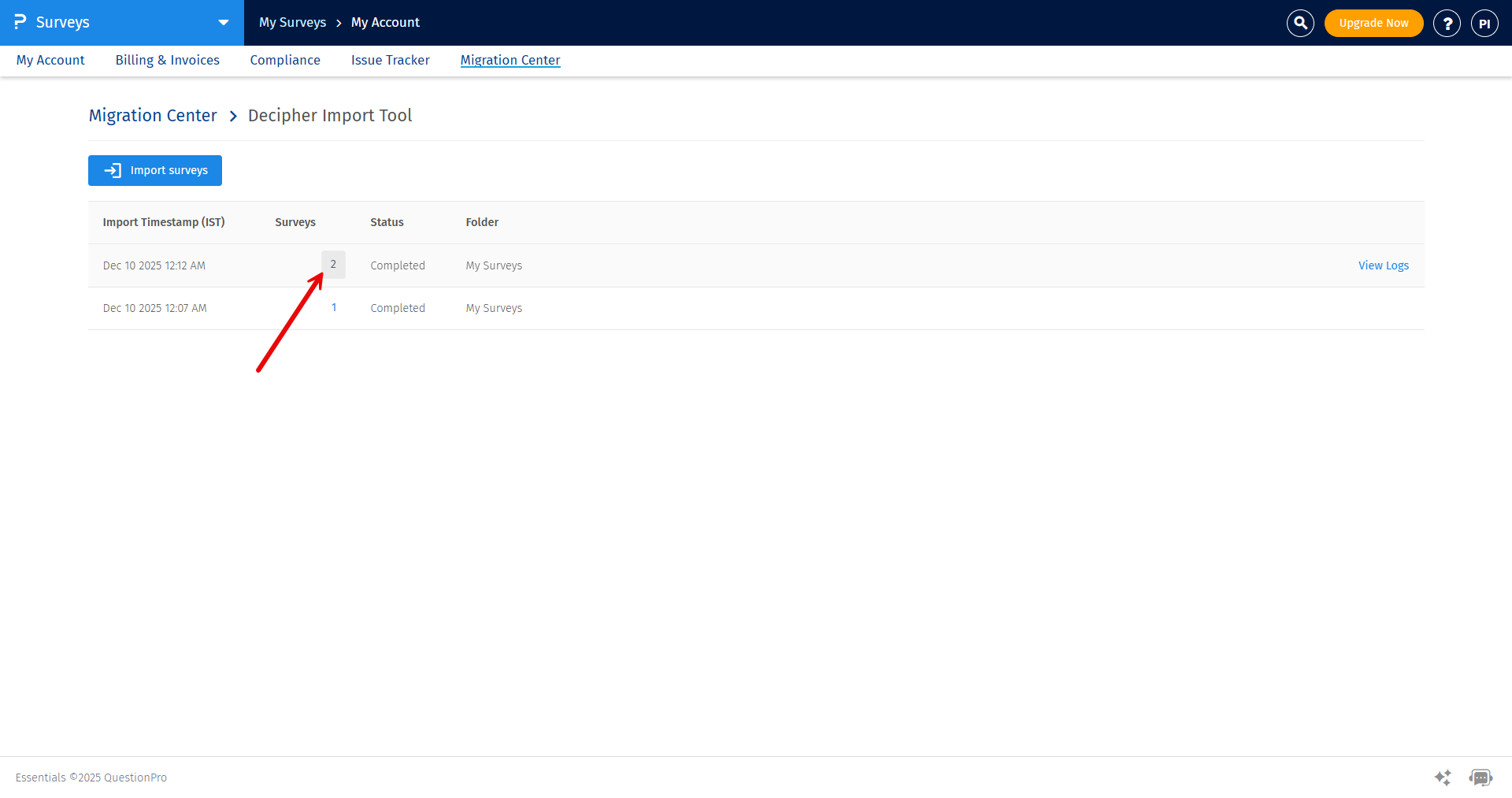
To check the list of surveys imported in a specific batch, click on the count of surveys displayed next to the batch.
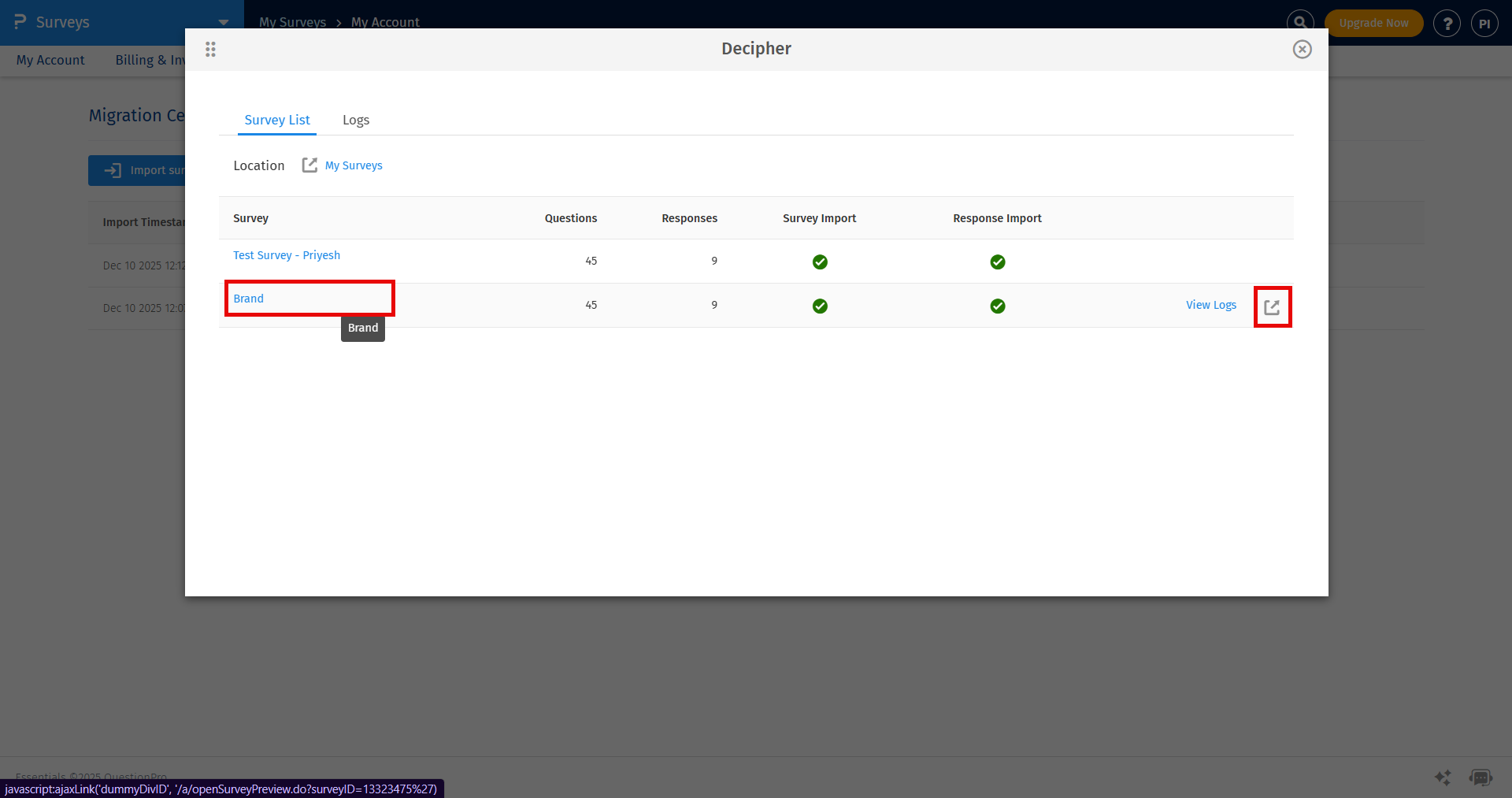
The pop-up will open displaying the list of surveys along with the status of survey import and response import.
You can click on the survey name to preview the survey or after hovering on the survey name, click on the Open in Workspace icon to open and edit the survey.
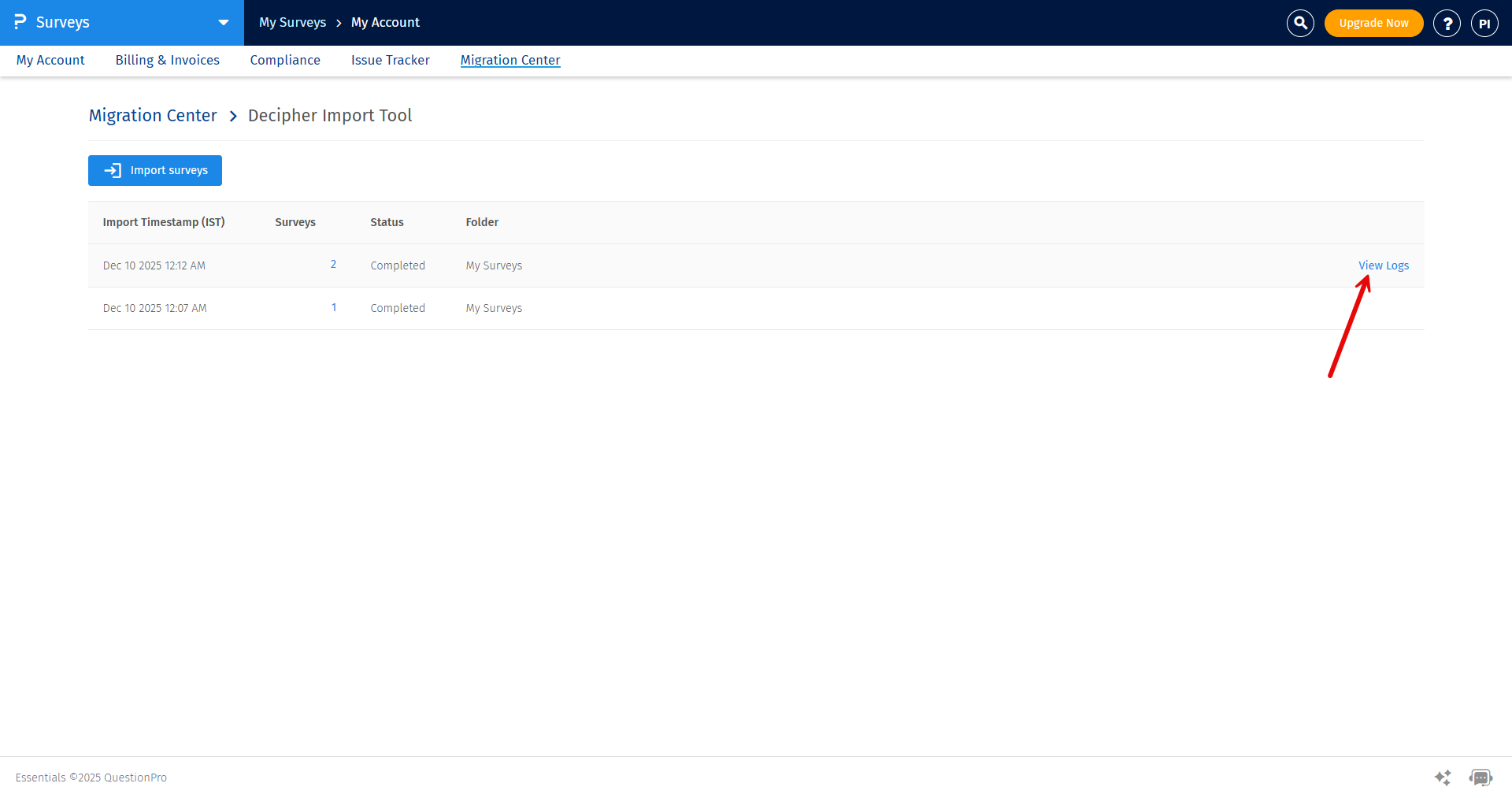
To view the detailed logs for the process, click on the View Logs option after hovering over the import batch.
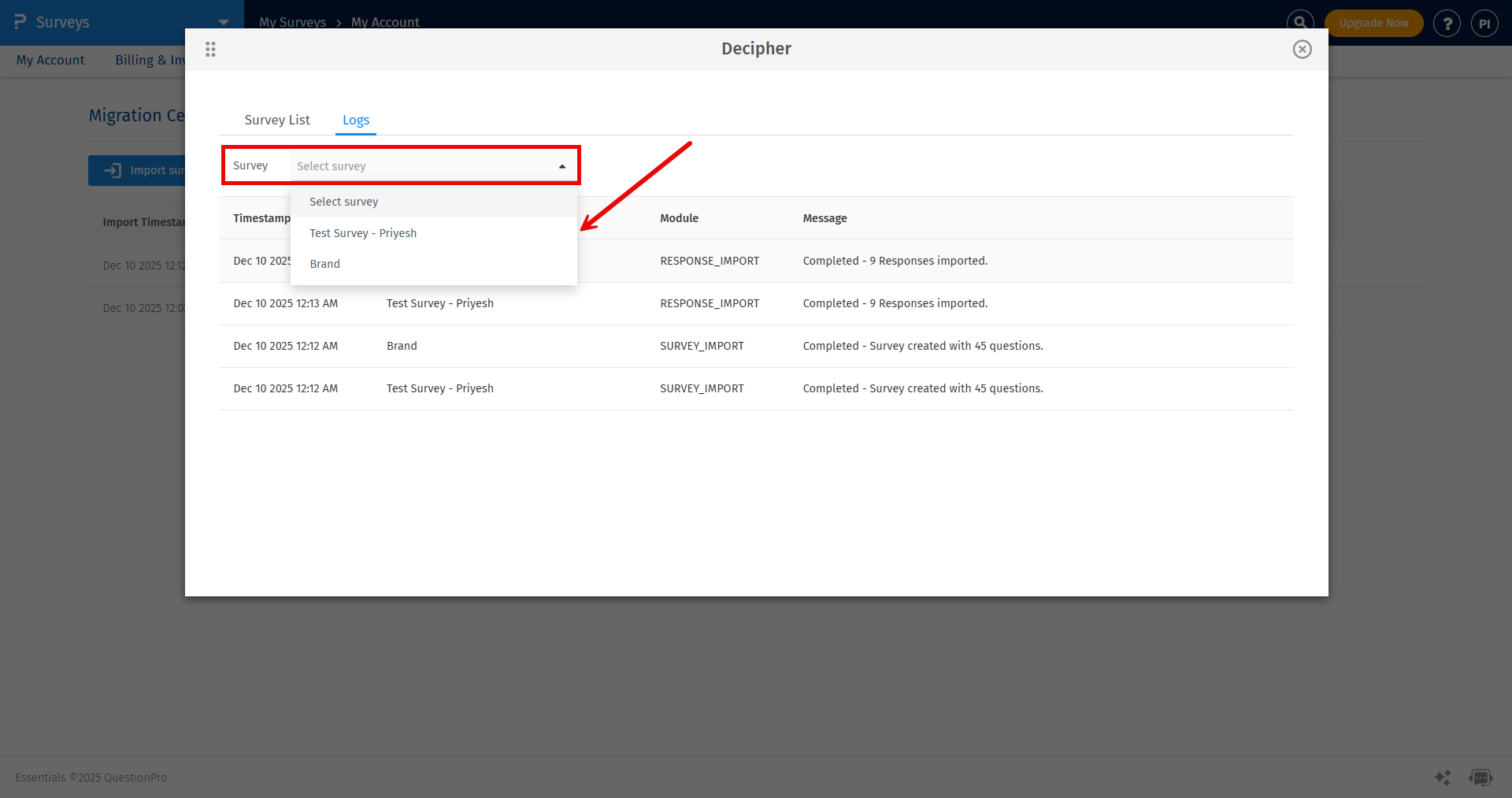
The logs will appear in a pop-up. Here you can also select to view logs for a specific survey by selecting the survey from the dropdown menu.
- File Upload
- Highlight (Speciality Question)
- Drill Down (Speciality Question)
- Timing (Advanced)
- Meta Info Question (Advanced)
- Screen Capture (Advanced)
- Side-by-Side Matrix
- HeatMap
- Hotspot
- Card Sorting
- Matrix Table: Dropdown list
- Conjoint and MaxDiff
No. As of now, QuestionPro does not import any logic present in the Decipher survey. You can apply the logics on your survey after importing it.
-
How many surveys can I import at a time?
- You can import a maximum of 50 surveys at a time in a single batch.
-
The questions in the survey that I upload in QuestionPro do not follow the order present in Decipher, what should I do?
- You can simply reorder the questions and achieve the desired order of the questions in a survey. To know more about reordering the questions Click Here.
-
My survey in Decipher has Branch logic applied on a few blocks, will this tool import it, or will it give me an error?
- The survey will be imported in your QuestionPro account but the logic will not be applied on the survey. QuestionPro does not import any logic present in the Decipher survey. You can apply the logics on your survey after importing it.
-
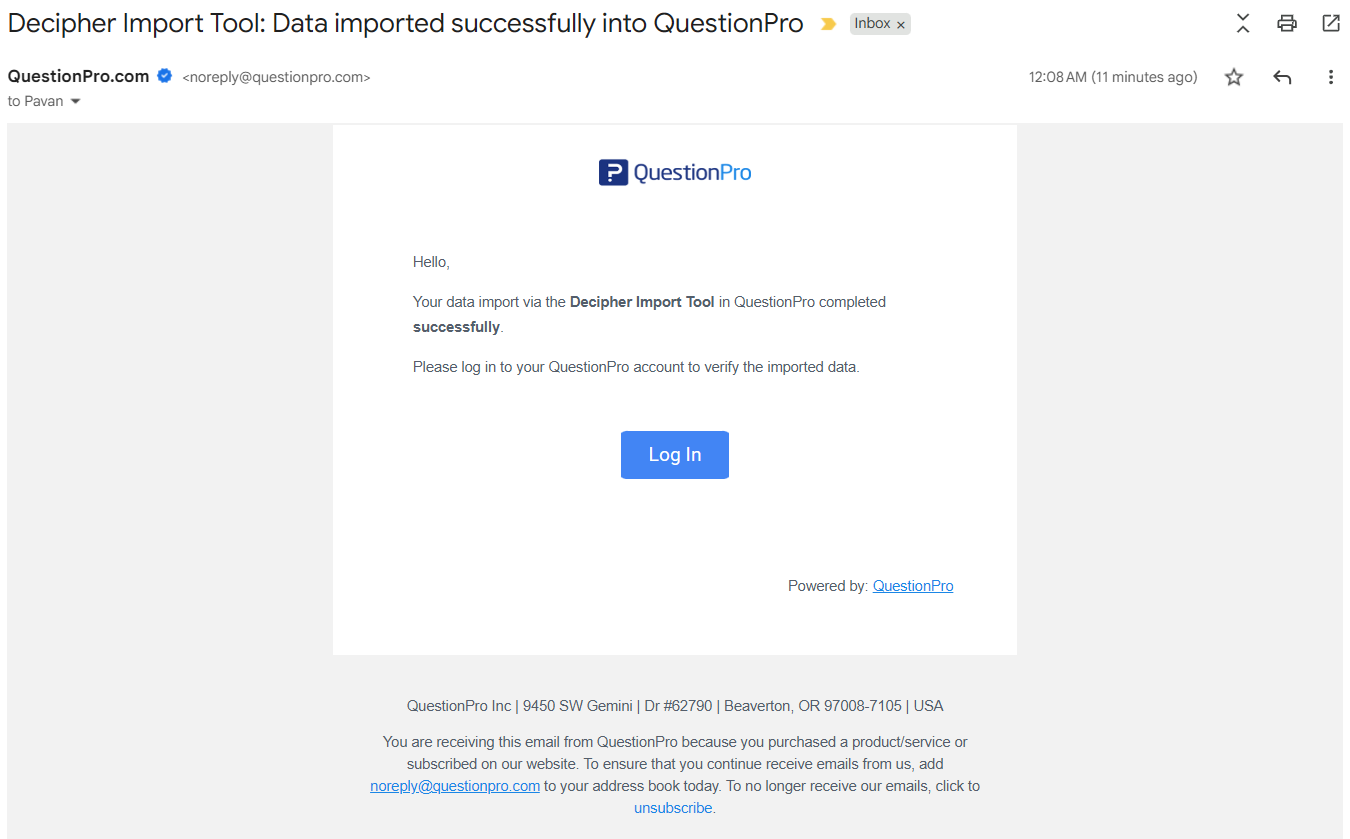
What will be the subject line of the email which will be sent after process completion?
-
Following is the example of the email which will be sent to the email address added on your account:

-
Following is the example of the email which will be sent to the email address added on your account:
-
If a question is skipped during import due to being unsupported or because of an error, how can we add the data for that question?
- If a question is skipped during survey import, the response data for that question cannot be imported as it cannot be linked to its corresponding question.